
Application Access
Welcome to the Roles and Access documentation for AZExecute. This guide provides detailed information on how to assign roles and manage access within the application.
Role Assignment and Access Control
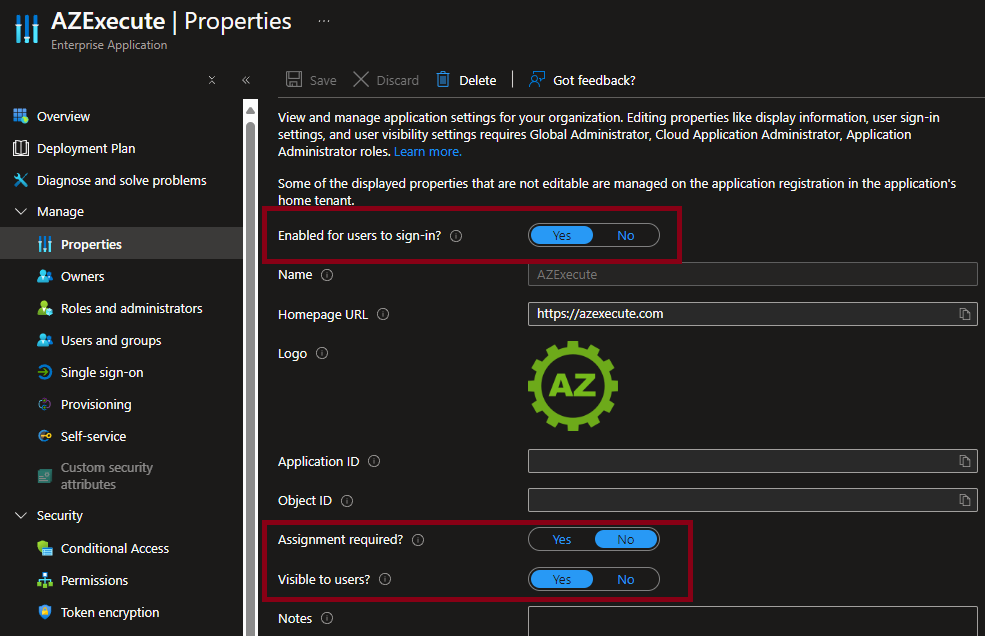
By default, users can sign in unless access is restricted by your tenant's Enterprise Application settings or Conditional Access policies. AZExecute uses Microsoft Authentication Library (MSAL), so sign-in follows your organization's Entra ID controls such as Conditional Access and MFA.
When a tenant has no users yet, the first user is assigned TenantAdmin by default. An explicit Microsoft Entra app-role assignment is authoritative, however, and can replace that initial role during the same sign-in.
How the effective tenant role is selected
AZExecute can receive a tenant role from either Microsoft Entra or a role configured in the product. The following precedence is applied at sign-in:
1. A recognized, explicit Microsoft Entra app role wins over the role configured in AZExecute.
2. If Entra supplies no recognized app role, the role configured in AZExecute is used.
3. If neither source provides a valid role, access defaults to User.
Recognized Entra values are AZExecute.Admin, AZExecute.TenantAdmin, TenantAdmin, AZExecute.Operator, Operator, AZExecute.User, and User. They are normalized to TenantAdmin, Operator, or User. If multiple recognized roles are assigned, the most privileged role wins: TenantAdmin, then Operator, then User.
After changing or removing an Entra app-role assignment, sign out and obtain a fresh token. TenantAdmins can review the resulting effective role and its source in System Access.
Assigning users and groups in Microsoft Entra
In the Azure portal, open the AZExecute Enterprise Application used for interactive sign-in and select Users and groups. Assign a recognized app role when Entra should be the authority for that user's tenant role. Assigning only Default Access leaves role management in AZExecute.
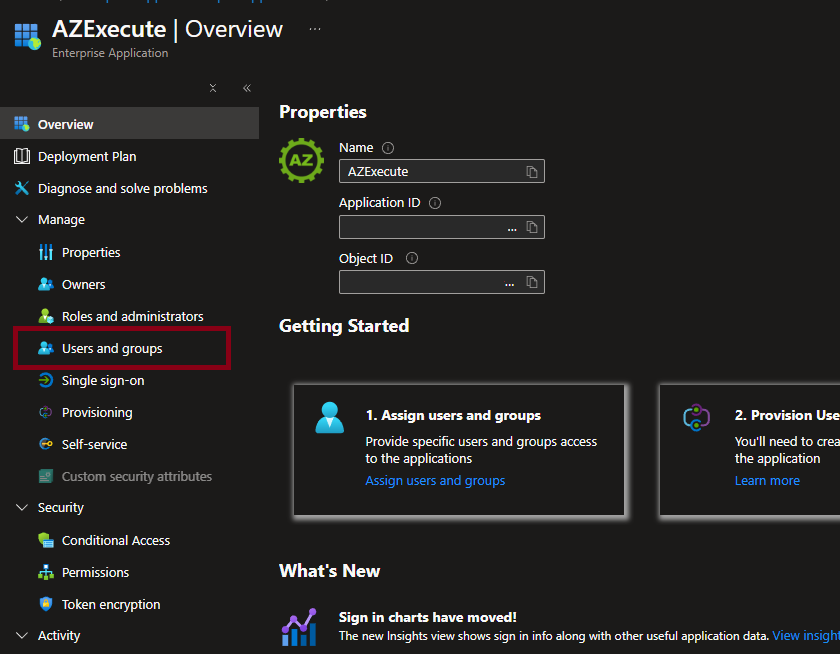
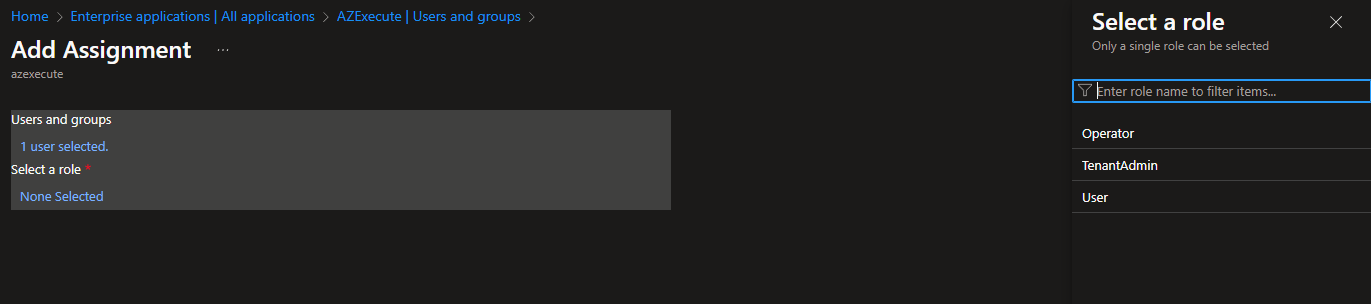
Direct user assignments and roles assigned through a group of which the user is a direct member are evaluated. After adding, changing, or removing an app-role assignment, have the user sign out and sign in again so Microsoft Entra issues a fresh token.
Managing User Access within AZExecute
Once users have logged in, TenantAdmins can review them in System Access. The user list shows the effective role and its source: Microsoft Entra, AZExecute, or Source unavailable.
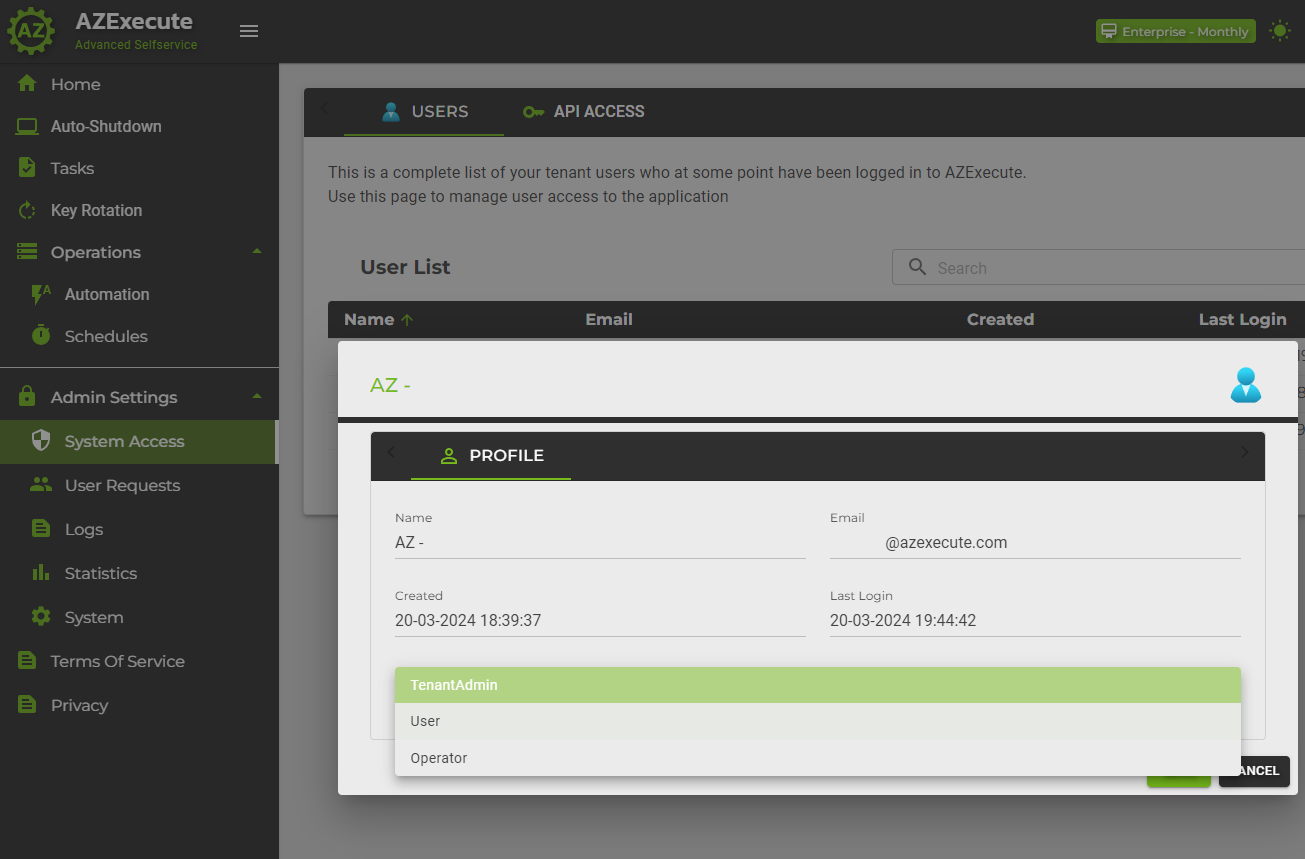
Roles sourced from AZExecute can be changed here. Roles sourced from Microsoft Entra are read-only in AZExecute and must be changed on the Enterprise Application in Entra. If the source cannot be verified, role editing is disabled so the application does not accidentally overwrite an Entra-managed role.
Microsoft references: Add app roles and receive them in tokens and list a user's app-role assignments.
Resource-Specific Access
Some features support access that is scoped to a single resource instead of the whole tenant. Certificate templates can be shared with individual users or AZExecute tenant groups, allowing people with the normal User role to view, use, edit, or own specific templates without becoming Operators.
• Tenant role access is still used for broad administrative responsibilities.
• Direct user access gives one person access to one certificate template.
• AZExecute tenant group access gives a team access through group membership.